<xsl:stylesheet version="1.0" xmlns:xsl="http://www.w3.org/1999/XSL/Transform" >
<xsl:output method="xml" version="1.0" encoding="UTF-8" indent="yes" />
<xsl:template match="/">
<xmp><xsl:copy-of select="*"/></xmp>
</xsl:template>
</xsl:stylesheet>
Wednesday, June 01, 2011


Contextual Search Results
I wanted to configure a contextual search to bring back results from a particular list only and display the results on the same web part page. I also wanted to be able to open the results items in a modal dialogue box (new for SharePoint 2010). On my page I have:
case "STS_Web": // Site
case "STS_List_850": // Page Library
case "STS_ListItem_850": // Page
case "STS_List_DocumentLibrary": // Document Library
case "STS_ListItem_DocumentLibrary": // Document Library Items
case "STS_List": // Custom List
case "STS_ListItem": // Custom List Item
case "STS_List_Links": // Links List
case "STS_ListItem_Links": // Links List Item
case "STS_List_Tasks": // Tasks List
case "STS_ListItem_Tasks": // Tasks List Item
case "STS_List_Events": // Events List
case "STS_ListItem_Events": // Events List Item
case "STS_List_Announcements": // Announcements List
case "STS_ListItem_Announcements": // Announcements List Item
case "STS_List_Contacts": // Contacts List
case "STS_ListItem_Contacts": // Contacts List Item
case "STS_List_DiscussionBoard": // Discussion List
case "STS_ListItem_DiscussionBoard": // Discussion List Item
case "STS_List_IssueTracking": // Issue Tracking List
case "STS_ListItem_IssueTracking": // Issue Tracking List Item
case "STS_List_GanttTasks": // Project Tasks List
case "STS_ListItem_GanttTasks": // Project Tasks List Item
case "STS_List_Survey": // Survey List
case "STS_ListItem_Survey": // Survey List Item
case "STS_List_PictureLibrary": // Picture Library
case "STS_ListItem_PictureLibrary": // Picture Library Item
case "STS_List_WebPageLibrary": // Web Page Library
case "STS_ListItem_WebPageLibrary": // Web Page Library Item
case "STS_List_XMLForm": // Form Library
case "STS_ListItem_XMLForm": // Form Library Item
case "urn:content-class:SPSSearchQuery": // Search Query
case "urn:content-class:SPSListing:News": // News Listing
case "urn:content-class:SPSPeople": // People
case "urn:content-classes:SPSCategory": // Category
case "urn:content-classes:SPSListing": // Listing
case "urn:content-classes:SPSPersonListing":// Person Listing
case "urn:content-classes:SPSTextListing": // Text Listing
case "urn:content-classes:SPSSiteListing": // Site Listing
case "urn:content-classes:SPSSiteRegistry": // Site Registry Listing
- a Search Box web part configured as follows:
- Scopes dropdown: Do not show dropdown and default to target results page
- a Search Core Results web part configured as follows:
- Results Query options / Append Text To Query - Site:http://site/Lists/ListName contentclass:STS_ListItem.
- Edit the Display Properties XSL by searching for this line:
<xsl:attribute name="href"> <xsl:value-of select="$url"> </xsl:value-of></xsl:attribute>
and replacing it with this:
<xsl:attribute name="href"> javascript:OpenDialog('<xsl:value-of select="$url">') </xsl:value-of></xsl:attribute>
case "STS_Web": // Site
case "STS_List_850": // Page Library
case "STS_ListItem_850": // Page
case "STS_List_DocumentLibrary": // Document Library
case "STS_ListItem_DocumentLibrary": // Document Library Items
case "STS_List": // Custom List
case "STS_ListItem": // Custom List Item
case "STS_List_Links": // Links List
case "STS_ListItem_Links": // Links List Item
case "STS_List_Tasks": // Tasks List
case "STS_ListItem_Tasks": // Tasks List Item
case "STS_List_Events": // Events List
case "STS_ListItem_Events": // Events List Item
case "STS_List_Announcements": // Announcements List
case "STS_ListItem_Announcements": // Announcements List Item
case "STS_List_Contacts": // Contacts List
case "STS_ListItem_Contacts": // Contacts List Item
case "STS_List_DiscussionBoard": // Discussion List
case "STS_ListItem_DiscussionBoard": // Discussion List Item
case "STS_List_IssueTracking": // Issue Tracking List
case "STS_ListItem_IssueTracking": // Issue Tracking List Item
case "STS_List_GanttTasks": // Project Tasks List
case "STS_ListItem_GanttTasks": // Project Tasks List Item
case "STS_List_Survey": // Survey List
case "STS_ListItem_Survey": // Survey List Item
case "STS_List_PictureLibrary": // Picture Library
case "STS_ListItem_PictureLibrary": // Picture Library Item
case "STS_List_WebPageLibrary": // Web Page Library
case "STS_ListItem_WebPageLibrary": // Web Page Library Item
case "STS_List_XMLForm": // Form Library
case "STS_ListItem_XMLForm": // Form Library Item
case "urn:content-class:SPSSearchQuery": // Search Query
case "urn:content-class:SPSListing:News": // News Listing
case "urn:content-class:SPSPeople": // People
case "urn:content-classes:SPSCategory": // Category
case "urn:content-classes:SPSListing": // Listing
case "urn:content-classes:SPSPersonListing":// Person Listing
case "urn:content-classes:SPSTextListing": // Text Listing
case "urn:content-classes:SPSSiteListing": // Site Listing
case "urn:content-classes:SPSSiteRegistry": // Site Registry Listing
Grouping list data in XSLT
I used a linked XSL file to override the output of my list web part, grouped by one of my custom columns called 'Classification'.
To add in an XSL override link to your XSL file via the list web part properties:

XSL (uploaded to a SharePoint Document library):
<xsl:stylesheet xmlns:x="http://www.w3.org/2001/XMLSchema" xmlns:d="http://schemas.microsoft.com/sharepoint/dsp" version="1.0" exclude-result-prefixes="xsl msxsl ddwrt" xmlns:ddwrt="http://schemas.microsoft.com/WebParts/v2/DataView/runtime" xmlns:asp="http://schemas.microsoft.com/ASPNET/20" xmlns:__designer="http://schemas.microsoft.com/WebParts/v2/DataView/designer" xmlns:xsl="http://www.w3.org/1999/XSL/Transform" xmlns:msxsl="urn:schemas-microsoft-com:xslt" xmlns:SharePoint="Microsoft.SharePoint.WebControls" xmlns:ddwrt2="urn:frontpage:internal" xmlns:o="urn:schemas-microsoft-com:office:office">
<xsl:include href="/_layouts/xsl/main.xsl"/>
<xsl:include href="/_layouts/xsl/internal.xsl"/>
<xsl:output method="html" indent="yes" version="4.0"/>
<xsl:template match="/">
<xsl:call-template name="MyTemplate" />
</xsl:template>
<xsl:key name="classificationKey" match="Row" use="@Classification" />
<xsl:key name="associatedTitle" match="Row" use="@Title" />
<xsl:template name="MyTemplate">
<xsl:for-each select="/dsQueryResponse/Rows/Row[generate-id(.)=generate-id(key('classificationKey', @Classification))]">
<h3><xsl:value-of select="@Classification" /></h3>
<xsl:variable name="thisClassification" select="@Classification" />
<xsl:for-each select="../Row[generate-id()=generate-id(key('associatedTitle', @Title)[@Classification = $thisClassification][1])]">
<div>
<strong>Title: </strong>
<xsl:value-of select="@Title" /><br/>
<strong>Description: </strong>
<xsl:value-of select="@Description" disable-output-escaping="yes" /><br/>
<strong>Link: </strong>
<a href="{@Link}" title="{@Title}"><xsl:value-of select="@Link"/></a>
</div>
</xsl:for-each>
</xsl:for-each>
</xsl:template>
</xsl:stylesheet>
This is the output:
Classification 1
Title 1
Description 1
Title 2
Description 2
Title 3
Description 3
Classification 2
Title 4
Description 4
Title 5
Description 5
To add in an XSL override link to your XSL file via the list web part properties:

XSL (uploaded to a SharePoint Document library):
<xsl:stylesheet xmlns:x="http://www.w3.org/2001/XMLSchema" xmlns:d="http://schemas.microsoft.com/sharepoint/dsp" version="1.0" exclude-result-prefixes="xsl msxsl ddwrt" xmlns:ddwrt="http://schemas.microsoft.com/WebParts/v2/DataView/runtime" xmlns:asp="http://schemas.microsoft.com/ASPNET/20" xmlns:__designer="http://schemas.microsoft.com/WebParts/v2/DataView/designer" xmlns:xsl="http://www.w3.org/1999/XSL/Transform" xmlns:msxsl="urn:schemas-microsoft-com:xslt" xmlns:SharePoint="Microsoft.SharePoint.WebControls" xmlns:ddwrt2="urn:frontpage:internal" xmlns:o="urn:schemas-microsoft-com:office:office">
<xsl:include href="/_layouts/xsl/main.xsl"/>
<xsl:include href="/_layouts/xsl/internal.xsl"/>
<xsl:output method="html" indent="yes" version="4.0"/>
<xsl:template match="/">
<xsl:call-template name="MyTemplate" />
</xsl:template>
<xsl:key name="classificationKey" match="Row" use="@Classification" />
<xsl:key name="associatedTitle" match="Row" use="@Title" />
<xsl:template name="MyTemplate">
<xsl:for-each select="/dsQueryResponse/Rows/Row[generate-id(.)=generate-id(key('classificationKey', @Classification))]">
<h3><xsl:value-of select="@Classification" /></h3>
<xsl:variable name="thisClassification" select="@Classification" />
<xsl:for-each select="../Row[generate-id()=generate-id(key('associatedTitle', @Title)[@Classification = $thisClassification][1])]">
<div>
<strong>Title: </strong>
<xsl:value-of select="@Title" /><br/>
<strong>Description: </strong>
<xsl:value-of select="@Description" disable-output-escaping="yes" /><br/>
<strong>Link: </strong>
<a href="{@Link}" title="{@Title}"><xsl:value-of select="@Link"/></a>
</div>
</xsl:for-each>
</xsl:for-each>
</xsl:template>
</xsl:stylesheet>
This is the output:
Classification 1
Title 1
Description 1
Title 2
Description 2
Title 3
Description 3
Classification 2
Title 4
Description 4
Title 5
Description 5
Friday, April 08, 2011
List View Lookup Threshold
In my workflow I have multiple 'Collect Data from Users' actions configured. It tested with no problems in my dev environment running with an admin account. However, in a separate test environment running the workflow as a normal user the workflow failed with the following error:
SP Workflow Error: An error has occurred in YourWorkflow
I searched the SP logs and found the following ULS error:
Some lookup fields were omitted from the query results because the list exceeds the lookup column threshold.
SP Workflow Error: An error has occurred in YourWorkflow
I searched the SP logs and found the following ULS error:
Some lookup fields were omitted from the query results because the list exceeds the lookup column threshold.
The problem occurred because SP has a threshold on list lookup columns set to a default value of 8.
There are two possible solutions:
There are two possible solutions:
- Increase the threshold in Central Administration
NOTE: It is recommended NOT to increase the threshold since it will affect performance across your web application.
However, if you do want to increase the threshold you can do so in the Resource Throttling settings in Central Administration. Here you can "specify the maximum number of Lookup, Person/Group, or workflow status fields that a database query can involve at one time":
- Click Manage web applications.
- Select the web application you want to update.
- Click General Settings | Resource Throttling.

- Update the List View Lookup Threshold to at least 12.
- Click OK.
- Reduce the number of lookup columns in your workflow.
NOTE - lists / libraries already have two lookup columns by default: 'Created by' and 'Modified by' so while the threshold is set to 8 you need to keep your additional columns to a maximum of 6.

Thursday, April 07, 2011
Hide and auto-generate 'Title' column in SP Designer workflow
I have a custom list content type, which applicants use to apply for jobs. The default 'Title' column is not required as it would make no sense to the applicant. However, I don't want to rename the site column or delete it from the site because it is used in other lists.
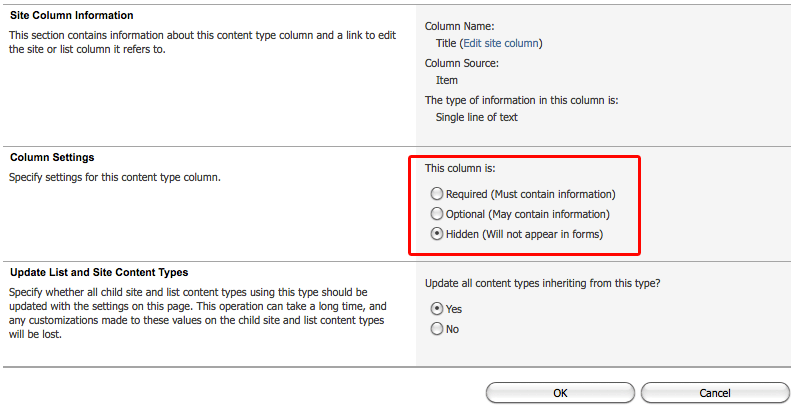
The 'Title' column is inherited by lists and libraries from the 'Item' content type. If you don't require it you can specify it's settings to be hidden so that it does not appear in any forms.
To Hide the Title Column:

To Auto-Generate the 'Title' column Value:
Using SP Designer you can auto-populate the 'Title' column based the values of other columns in your list item using the 'Update List Item' action:

NOTE: When a user creates a new list item the 'Title' will initially be set to '(no title)'. Associated tasks in the workflow are related to the list item title by SharePoint (for example when collecting data from users). To avoid tasks being related to items with '(no title)' set a 'Pause for Duration' action for 5 minutes in the workflow to allow SP timer jobs to reflect your auto-generated title in the list.
The 'Title' column is inherited by lists and libraries from the 'Item' content type. If you don't require it you can specify it's settings to be hidden so that it does not appear in any forms.
To Hide the Title Column:
- Open your custom Content Type Information page and select the 'Title' column.
- Set the Column Settings to 'Hidden'.
Using SP Designer you can auto-populate the 'Title' column based the values of other columns in your list item using the 'Update List Item' action:

NOTE: When a user creates a new list item the 'Title' will initially be set to '(no title)'. Associated tasks in the workflow are related to the list item title by SharePoint (for example when collecting data from users). To avoid tasks being related to items with '(no title)' set a 'Pause for Duration' action for 5 minutes in the workflow to allow SP timer jobs to reflect your auto-generated title in the list.
Subscribe to:
Posts (Atom)