Showing posts with label Central Administration. Show all posts

Friday, March 27, 2009

Installing Project Server 2007 on an existing MOSS farm with Kerberos enabled

I have a medium server farm running MOSS 2007. There are three servers (2 WFE, 1 Index & 1 SQL).

Note - Project Server cannot be uninstalled from a joint MOSS / PS installation

To install Project Server 2007:
  1. Copy Project Server installer on to each server - i put them in C:\Temp
  2. Quiesce the MOSS farm via Central Administration / Operations
  3. Run the PS install files on each server in the farm
  4. Unquiesce the farm
  5. Run the MOSS configuration wizard on each server one by one
Start the Project Server Service:
  1. Open Central Administration and select the Operations tab
  2. Select Services on Server
  3. Select the server you want to run the Project Server service
  4. If the Project Server Service is not dispayed change the server role to Custom


  5. Start the Project Server service
Provision the Project Server site:
  1. Open Central Administration and navigate to Shared Services Administration
  2. Open the SSP that on to which you want to provsion Project Web Access (PWA)


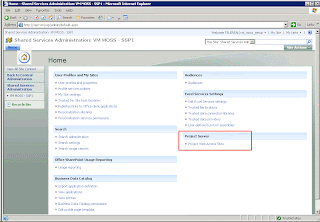
  3. On the SSP homepage select Project Web Access Sites
  4. Select Create Project Web Access Site


  5. Select the MOSS web application to host the PWA
  6. Assign a PWA path for example: projectserver
  7. Assign the Administrator Account for the PS instance
  8. Assign the primary database SQL server
  9. Name the four PS databases
  10. Click OK
  11. When provisioning is complete Provisioned will appear in the status column - to refresh the status click Refresh Status


  12. To enable access you must ensure that you have registered the server SPNs for Kerberos delegation and for the web application process accounts. Until you do this you will get an access denied error when you try to access the PWA site.

Thursday, January 15, 2009

Enabling MOSS Anonymous Access

  1. From Central Administration > Application Management > Application Security > Authentication Providers, select a Web application and the zone you want to modify. This is usually default.

  2. In the middle of the page, check Enable Anonymous Access and choose Save

  3. All site collections in that Web application can now have anonymous access enabled.

  4. Go to a site collection in the Web application you just enabled anonymous access for

  5. From Site Actions > Site Settings, open Advanced Permissions

  6. From the Settings drop-down menu, select Anonymous Access

  7. For this example, enable anonymous access for Lists and Libraries and click OK

  8. Browse to any document library in this site collection

  9. From the Settings drop-down menu, select Document Library Settings

  10. In the Permissions and Management column, select Permissions for this document library

  11. From the Actions menu, select Edit Permissions to break inheritance

  12. From the newly appeared Settings drop-down menu, select Anonymous Access

  13. Check View Items and click OK.

Friday, January 09, 2009

Adding New SSP Administrators

http://blogs.msdn.com/sgoodyear/archive/2007/06/20/adding-new-ssp-administrators.aspx

When you add a new user account to the SSP site, even if you grant them Full Control permissions or add them as a Site Collection Administrator, initially they will experience access denied error messages when they click on any of the following links on the SSP Admin page:

* User profiles and properties
* Profile services policies
* My Site settings
* Personalization services permissions
* Audiences
* Import application definition
* Business Data Catalog permissions

These sections need to have permissions explicitly set. Initially, the setup account will have full access to the SSP, so use that account to grant rights to new SSP administrators you wish to delegate SSP administrative duties to.

Notice the items highlighted in bold in the list above. These are where you assign the remaining SSP permissions. Adding new SSP administrators to the "Personalization services permissions" section and granting appropriate rights will grant rights related to the first five links in the list above. Repeating the process in the "Business Data Catalog permissions" section will grant rights related to the last two links.

At this point, the new SSP administrator has all the appropriate access permissions they need to administrate the SSP.

Monday, November 10, 2008

Event ID 7888

The Problem:

I found the following error on my Index Server:

Event ID 7888

A runtime exception was detected. Details follow.
Message: Access Denied! Only site admin can access Data Source object from user profile DB.

Techinal Details:
System.UnauthorizedAccessException: Access Denied! Only site admin can access Data Source object from user profile DB.
at Microsoft.Office.Server.UserProfiles.SRPSite.
AdminCheck(String message)

at Microsoft.Office.Server.UserProfiles.DataSource.
_LoadDataSourceDef(IDataRecord rec)

at Microsoft.Office.Server.UserProfiles.DataSource.
_LoadDataSourceDef(String strDSName)

at Microsoft.Office.Server.UserProfiles.
DataSource..ctor(SRPSite site, Boolean fAllowEveryoneRead)

at Microsoft.Office.Server.UserProfiles.
DataSource..ctor(SRPSite site)

at Microsoft.Office.Server.UserProfiles.
UserProfileConfigManager.GetDataSource()

at Microsoft.Office.Server.UserProfiles.
BDCConnector.RefreshConfiguration(String sspName)


The Solution:

  1. Open your SSP and navigate to Personalization Services Permissions.
  2. Select Add User and add your SSP process account with Manage User Profiles permissions.


Tuesday, November 04, 2008

Changing MOSS service accounts & passwords

I have been preparing some servers for a bunch of testing with PerformancePoint Server (more to follow on this later) which required me to change our MOSS service accounts. Reading around the steps to update these credentials appeared pretty straight forward but as usual MOSS' idiosyncrasies were all to apparent. Here's what i did and how i managed to solve the issues that arose. Hope it helps someone else with the same challenge.

The accounts to be changed were as follows:
  1. old_moss_admin ----> new_moss_admin
  2. old_ssp_ap ---->new_ssp_ap
  3. old_ap1_process ---->new_ap1_process
I followed the following MS KB instructions: 'How to change service accounts and service account passwords in SharePoint Server 2007 and in Windows SharePoint Services 3.0'

1. MOSS Admin Account Update

To update the account old_moss_admin to new_moss_admin:
  1. Update the password for the account that is used by the Central Administration application pool. To do this, follow these steps:

    1. On all servers in the server farm, open a command prompt, type the following line, and then press ENTER:
      cd %commonprogramfiles%\Microsoft Shared\Web server extensions\12\Bin

    2. On the server that hosts the Central Administration Web site, type the following line at the command prompt, and then press ENTER:
      stsadm -o updatefarmcredentials -userlogin DomainName\UserName -password NewPassword

    3. On all other servers in the server farm, type the following line at the command prompt, and then press ENTER:
      stsadm -o updatefarmcredentials -userlogin DomainName\UserName -password NewPassword -local

    4. Restart Microsoft Internet Information Services (IIS) 6.0. To do this, type the following line at the command prompt, and then press ENTER:
      iisreset /noforce

  2. Verify that the Administration Application Pool Credential Deployment job definition is no longer displayed on the Timer Job Definitions page of SharePoint 3.0 Central Administration. To do this, follow these steps:

    1. Open SharePoint 3.0 Central Administration, click Operations, and then click Timer job definitions under Global Configuration.

    2. Verify that the Administration Application Pool Credential Deployment job definition is no longer displayed in the list.
Error: My Central Administration is now no longer available with the error: 'Service Unavailable'
  • I checked & retyped the password in CA web app pool.
  • I checked the WSS_WPG, WSS_RESTRICTED_WPG and WSS_ADMIN_WPG local groups on each of the servers - all seemed to be up to date.
  • Restarting the CA web app pool makes no difference.
At this point i rolled back to the previous credentials. I then tried again from the start following the same steps above. Result - my Central Administration was still unavailable with the error: 'Service Unavailable'
  • I checked the IIS_WPG local group on each server. The new_moss_admin account was not updated so i added it to the group.
I then discovered a couple of DCOM errors in the System Event viewer.
  1. I updated the new CA account 'new_moss_admin' to:

    • IIS Admin Service
    • IIS WAMREG Admin Service

  2. Restarted IIS.
Success: Central Admin is up and running again.

2. SSP Account Update

To update the SSP account old_ssp_ap to new_ssp_ap:

Attempt 1 - The wrong way...
  1. Open Central Administration
  2. Navigate to the Operations page
  3. Select Service Accounts
  4. Select the radio button Web app pool
  5. Select the web service - WSS Web App
  6. Select the App Pool - SSP1
  7. Select the radio button Configurable
  8. Input the new credentials
  9. Ok
  10. Restarted IIS on both my servers
Error: This had no effect other than stopping me from accessing the SSP. Checking in IIS the account was not updated to the new credentials. I then tried to update the accout via IIS but this had noeffect either and on opening the App Pool properties again i discovered that the account credentials had changed themselves back to the old account.

Attempt 2 - The right way...

I then tried a different approach:
  1. Open Central Administration
  2. Navigate to the Shared Services Aministration homepage
  3. Hover over SSP1's title and select Edit Properties from the drop down.
  4. Scroll down to SSP Server Credentials
  5. Delete the old credentials and input the new account username & password
  6. Ok
  7. I then changed the SSP to be the default SSP.
  8. Open Compnent Services and update the DCOM services IIS Admin & IIS WAMREG with the new account.
  9. Restarted IIS on both my servers.
Checking IIS the account was still not updated to the new credentials and i still could not access the SSP website.

Success: 10 minutes later having searched on Google again and felt thoroughly annoyed at there being no pages I hadn't yet read on this topic I checked the SSP website again and it worked! Checking IIS the accounts have now updated to the new credentials.

At this stage I discovered some new errors in the Event View
  1. Application Server Administration job failed for service instance Microsoft.Office.Server.Search.Administration.SearchServiceInstance (5d77cabf-3414-40cc-a5ef-f30226a9288b).

    Reason: The program attempted to update an object that was updated by another user.

  2. Eventid 6482 - Reason: Access to the path 'C:\WINDOWS\system32\drivers\etc\HOSTS' is denied.

    This error was now occuring every minute.

    The solution to this (and the previous error) can be found in my previous post here: http://bytelab.blogspot.com/2008/02/sharepoint-search-service-cannot-find.html

3. Application Pool Process Accout Update

To update the web app pool process account old_ap1_process to new_ap1_process:
  1. Open Central Administration
  2. Navigate to the Operations page
  3. Select Service Accounts
  4. Select the radio button Web app pool
  5. Select the web service - WSS Web App
  6. Select the App Pool - MOSS Portal
  7. Select the radio button Configurable
  8. Input the new credentials
  9. Ok
  10. Open Compnent Services and update the DCOM services IIS Admin & IIS WAMREG with the new account.
  11. Restarted IIS on both my servers
Success: All updated and working ok.

************************************************************

Useful web sites i visited for this:

Thursday, October 09, 2008

SSP Stuck on Unprovisioning

I tried to delete a test SSP the other day via Central Administration. Having selected the options to also delete associated content databases and web applications i hit ok and left it to run. The SSP status changed to 'Unprovisioning' and an hour later was still stuck.

I then followed this example in the hope the SSP would delete.
  • http://prequest01.wordpress.com/2008/08/16/unable-to-delete-shared-services/

    1. Tried: stsadm -o deletessp "TestSSP" –force, but this did not work
    2. Login to SQL server.
    3. Open SQL Management Studio and expend Databases.
    4. Expand Configuration Database & Tables.
    5. Opened table for dbo.object.
    6. Executed following query in query analyzer: SELECT * FROM [MOSS_CFG_CA_01].[dbo].[Objects]where name like ‘Name of the Shared Services’.
    7. Copy the ID of object referenced in objects table of configuration database.
    8. Open command prompt and changed directory to C:\Program Files\Common Files\Microsoft Shared\web server extensions\12\BIN> and executed following command to delete the Shared Services using the ID which was copied: Stsadm -o deleteconfigurationobject -id “id retrieved from object table”
  • To clean up we decide to delete the DBs via SQL Management Studio and delete the web applications via Central Administration.
A week later I discovered that one of our servers had rebooted itself with the following log (don't yet know if this is related):

System Failure: Stop error
Reason Code: 0x805000f
Bug ID:
Bugcheck String: 0x000000c5 (0x00000004, 0xd0000002, 0x00000001, 0x8089bce3)
Comment: 0x000000c5 (0x00000004, 0xd0000002, 0x00000001, 0x8089bce3)


I then discovered that the search was no longer working. Submiting a query returned the following error:

Cannot connect to the search service

The status of the test SSP i had tried to delete was still stuck on 'Unprovisioning'. Also the other SSPs 'Edit Properties' pages in Central Administration were no longer available and returned the following error:

An unhandled exception occurred in the user interface.Exception Information: Cannot open database "xxx" requested by the login. The login failed. Login failed for user 'xxx'.

In the event log on the server I found multiple instances of the following error:

Application Server Administration job failed for service instance Microsoft.Office.Server.Search.Administration.SearchServiceInstance (e6a1ecb4-3aa8-45cd-a179-d7e053aa927a).

Reason: Cannot open database "xxx" requested by the login. The login failed.
Login failed for user 'xxx'.


Solution:
  1. Restart the Office SharePoint Server Search service in via the Computer Management console - Search still not working.
  2. I retried the STSADM CMD
    stsadm -o deletessp "TestSSP" –force
Operation was successful this time and the SSP has now gone. The event log is now clear of all errors and the unavailable pages in Central Administration are now available again.

Wednesday, February 13, 2008

Move Central Administration to another server in your farm

  1. On the existing farm Central Administration server (DEV01W2K3) remove the Central Administration website:
    1. Run the SP configuration wizard
    2. Select: Do not disconnect from the server farm (Warning: Disconnecting from the server farm will result in all your web applications being deleted from IIS. They can be recreated if you reconfigure central administration again and link to the existing configuration DB, but they will be unavailable until that time. That means no web sites available and more down time than necessary!)
    3. Select: Yes, I want to remove the website from this machine
    4. Select: Ok

    Note: The configuration wizard will stop IIS and all websites may become unavailable for a few minutes while it steps through the processes. Ensure that you do not delete any databases as you will be hooking the new Central Admin site to the original DB.

    If you check IIS you will see that the Central Administration web application has disappeared leaving only your portal web apps and the OfficeServerApplication


  2. Run the SP configuration wizard on the new server (DEV02W2K3) and recreate the Central Administration site.
    1. Select: Do not disconnect from the configuration database
    2. Select: Advanced Settings
    3. Select: Use this machine to host the web site
    4. Select: Next / Ok
  3. Open central administration and check the servers in the farm – you should see Central Administration now hosted on DEV02W2K3:


  4. Check all your services are running – search may need restarting and you may need to reset the index role in the Shared Service Provider properties.
  5. Check your event logs and work through any issues.