Thanks Christophe & Larry for this useful bit of styling to modify the SharePoint 2010 'Boxed' list style to display items in a single column layout (rather than the default 2 cols):
public string FormatDate(string szDate, long lcid, long formatFlag); <xsl:value-of select="ddwrt:FormatDateTime(ddwrt:TodayIso(),2057,'dddd MMMM dd yyyy')" />
public string TodayIso(); <xsl:value-of select="ddwrt:TodayIso()"/>
public string Today(); <xsl:value-of select="ddwrt:Today()"/>
Date only as M/d/yyyy. Example: "08/17/2000".
Date only as dddd, MM dd, yyyy. Example: "Thursday, August 17, 2000".
Time only as h:mm. Example: "16:32".
DateTime as M/d/yyyy h:mm. Example: "08/17/2000 16:32".
DateTime as dddd, MM dd, yyyy h:mm. Example: "Thursday, August 17, 2000 16:32".
Time only as h:mm:ss. Example: "16:32:32".
DateTime as M/d/yyyy h:mm:ss. Example: "08/17/2000 16:32:32".
DateTime as dddd, MMMM dd, yyyy h:mm:ss. Example: "Thursday, August 17, 2000 16:32:32".
To display an XLV on another site update the Title, Description, ListId and WebId values in this code; save as a .webpart; upload the file to a web part page (more info on Glyn's blog):
<?xml version="1.0" encoding="utf-8" ?> <webParts> <webPart xmlns="http://schemas.microsoft.com/WebPart/v3"> <metaData> <type name="Microsoft.SharePoint.WebPartPages.XsltListViewWebPart, Microsoft.SharePoint, Version=14.0.0.0, Culture=neutral, PublicKeyToken=71e9bce111e9429c" /> <importErrorMessage>Cannot import this Web Part.</importErrorMessage> </metaData> <data> <properties> <property name="Title" type="string">My List</property> <property name="Description" type="string">A view of My list from the root of the site</property> <property name="ListName" type="string">8480D028-A2ED-474B-8259-BEE394EE4C53</property> <property name="ListId" type="System.Guid, mscorlib, Version=2.0.0.0, Culture=neutral, PublicKeyToken=b77a5c561934e089">8480D028-A2ED-474B-8259-BEE394EE4C53</property> <property name="WebId" type="System.Guid, mscorlib, Version=2.0.0.0, Culture=neutral, PublicKeyToken=b77a5c561934e089">adea17f7-e661-4ff0-91e9-70f021c60647</property> <property name="ExportMode" type="exportmode">All</property> </properties> </data> </webPart> </webParts>
I wanted to configure a contextual search to bring back results from a particular list only and display the results on the same web part page. I also wanted to be able to open the results items in a modal dialogue box (new for SharePoint 2010). On my page I have:
a Search Box web part configured as follows:
Scopes dropdown: Do not show dropdown and default to target results page
a Search Core Results web part configured as follows:
Results Query options / Append Text To Query - Site:http://site/Lists/ListName contentclass:STS_ListItem.
Edit the Display Properties XSL by searching for this line:
Thanks to Glyn for pointing me in the right direction again and Rain Tree Studio for this list of contentclass values, which can be appended to a search query:
case "STS_Web": // Site
case "STS_List_850": // Page Library
case "STS_ListItem_850": // Page
case "STS_List_DocumentLibrary": // Document Library
case "STS_ListItem_DocumentLibrary": // Document Library Items
case "STS_List": // Custom List
case "STS_ListItem": // Custom List Item
case "STS_List_Links": // Links List
case "STS_ListItem_Links": // Links List Item
case "STS_List_Tasks": // Tasks List
case "STS_ListItem_Tasks": // Tasks List Item
case "STS_List_Events": // Events List
case "STS_ListItem_Events": // Events List Item
case "STS_List_Announcements": // Announcements List
case "STS_ListItem_Announcements": // Announcements List Item
case "STS_List_Contacts": // Contacts List
case "STS_ListItem_Contacts": // Contacts List Item
case "STS_List_DiscussionBoard": // Discussion List
case "STS_ListItem_DiscussionBoard": // Discussion List Item
case "STS_List_IssueTracking": // Issue Tracking List
case "STS_ListItem_IssueTracking": // Issue Tracking List Item
case "STS_List_GanttTasks": // Project Tasks List
case "STS_ListItem_GanttTasks": // Project Tasks List Item
case "STS_List_Survey": // Survey List
case "STS_ListItem_Survey": // Survey List Item
case "STS_List_PictureLibrary": // Picture Library
case "STS_ListItem_PictureLibrary": // Picture Library Item
case "STS_List_WebPageLibrary": // Web Page Library
case "STS_ListItem_WebPageLibrary": // Web Page Library Item
case "STS_List_XMLForm": // Form Library
case "STS_ListItem_XMLForm": // Form Library Item
case "urn:content-class:SPSSearchQuery": // Search Query
case "urn:content-class:SPSListing:News": // News Listing
case "urn:content-class:SPSPeople": // People
case "urn:content-classes:SPSCategory": // Category
case "urn:content-classes:SPSListing": // Listing
case "urn:content-classes:SPSPersonListing":// Person Listing
case "urn:content-classes:SPSTextListing": // Text Listing
case "urn:content-classes:SPSSiteListing": // Site Listing
case "urn:content-classes:SPSSiteRegistry": // Site Registry Listing
In my workflow I have multiple 'Collect Data from Users' actions configured. It tested with no problems in my dev environment running with an admin account. However, in a separate test environment running the workflow as a normal user the workflow failed with the following error:
SP Workflow Error: An error has occurred in YourWorkflow
I searched the SP logs and found the following ULS error:
Some lookup fields were omitted from the query results because the list exceeds the lookup column threshold.
The problem occurred because SP has a threshold on list lookup columns set to a default value of 8.
There are two possible solutions:
Increase the threshold in Central Administration
NOTE: It is recommended NOT to increase the threshold since it will affect performance across your web application.
However, if you do want to increase the threshold you can do so in the Resource Throttling settings in Central Administration. Here you can "specify the maximum number of Lookup, Person/Group, or workflow status fields that a database query can involve at one time":
Click Manage web applications.
Select the web application you want to update.
Click General Settings | Resource Throttling.
Update the List View Lookup Threshold to at least 12.
Click OK.
Reduce the number of lookup columns in your workflow.
NOTE - lists / libraries already have two lookup columns by default: 'Created by' and 'Modified by' so while the threshold is set to 8 you need to keep your additional columns to a maximum of 6.
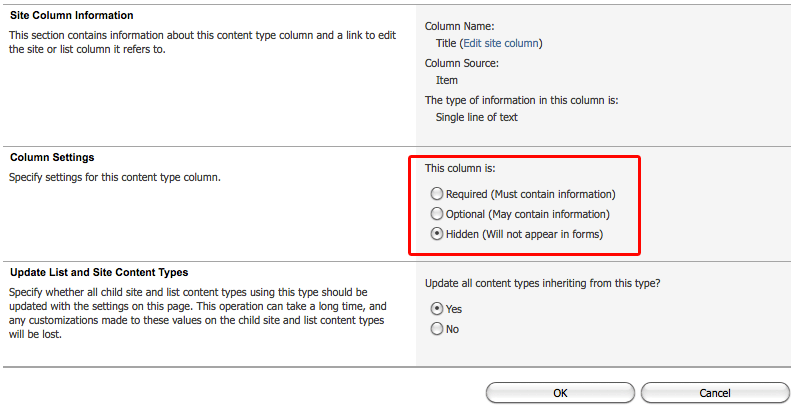
I have a custom list content type, which applicants use to apply for jobs. The default 'Title' column is not required as it would make no sense to the applicant. However, I don't want to rename the site column or delete it from the site because it is used in other lists.
The 'Title' column is inherited by lists and libraries from the 'Item' content type. If you don't require it you can specify it's settings to be hidden so that it does not appear in any forms.
To Hide the Title Column:
Open your custom Content Type Information page and select the 'Title' column.
Set the Column Settings to 'Hidden'.
To Auto-Generate the 'Title' column Value:
Using SP Designer you can auto-populate the 'Title' column based the values of other columns in your list item using the 'Update List Item' action:
NOTE: When a user creates a new list item the 'Title' will initially be set to '(no title)'. Associated tasks in the workflow are related to the list item title by SharePoint (for example when collecting data from users). To avoid tasks being related to items with '(no title)' set a 'Pause for Duration' action for 5 minutes in the workflow to allow SP timer jobs to reflect your auto-generated title in the list.
This content comes from: http://office.microsoft.com/en-au/windows-sharepoint-services-help/examples-of-common-formulas-HA001160947.aspx
Examples of common formulas
You can use the following examples in calculated columns. Examples that do not include column references can be used to specify the default value of a column.
Conditional formulas
Check if a number is greater than or less than another number
Use the IF function to do this task.
COLUMN1
COLUMN2
FORMULA
DESCRIPTION
15000
9000
=Column1>Column2
Is Column1 greater than Column2? (Yes)
15000
9000
=IF(Column1<=Column2, "OK", "Not OK")
Is Column1 less than or equal to Column2? (Not OK)
Return a logical value after comparing column contents
For a result that is a logical value (Yes or No), use the AND, OR, and NOT functions.
COLUMN1
COLUMN2
COLUMN3
FORMULA
DESCRIPTION
15
9
8
=AND(Column1>Column2, Column1
Is 15 greater than 9 and less than 8? (No)
15
9
8
=OR(Column1>Column2, Column1
Is 15 greater than 9 or less than 8? (Yes)
15
9
8
=NOT(Column1+Column2=24)
Is 15 plus 9 not equal to 24? (No)
For a result that is another calculation, or any other value other than Yes or No, use the IF, AND, and OR functions.
COLUMN1
COLUMN2
COLUMN3
FORMULA
DESCRIPTION
15
9
8
=IF(Column1=15, "OK", "Not OK")
If the value in Column1 equals 15, then return "OK". (OK)
15
9
8
=IF(AND(Column1>Column2, Column1
If 15 is greater than 9 and less than 8, then return "OK". (Not OK)
15
9
8
=IF(OR(Column1>Column2, Column1
If 15 is greater than 9 or less than 8, then return "OK". (OK)
Display zeroes as blanks or dashes
Use the IF function to do this task.
COLUMN1
COLUMN2
FORMULA
DESCRIPTION
10
10
=Column1-Column2
Second number subtracted from the first (0)
15
9
=IF(Column1-Column2,"-",Column1-Column2)
Returns a dash when the value is zero (-)
Date and time formulas
Add dates
To add a number of days to a date, use the addition (+) operator. Note that when manipulating dates, the return type of the calculated column must be set to Date and Time.
COLUMN1
COLUMN2
FORMULA
DESCRIPTION
6/9/2007
3
=Column1+Column2
Add 3 days to 6/9/2007 (6/12/2007)
12/10/2008
54
=Column1+Column2
Add 54 days to 12/10/2008 (2/2/2009)
To add a number of months to a date, use the DATE, YEAR, MONTH, and DAY functions.
Add 1 year, 7 months, and 5 days to 6/9/2007 (7/15/2010)
Calculate the difference between two dates
Use the DATEDIF function to do this task.
COLUMN1
COLUMN2
FORMULA
DESCRIPTION
01-Jan-1995
15-Jun-1999
=DATEDIF(Column1, Column2,"d")
Return the number of days between the two dates (1626)
01-Jan-1995
15-Jun-1999
=DATEDIF(Column1, Column2,"ym")
Return the number of months between the dates, ignoring the year part (5)
01-Jan-1995
15-Jun-1999
=DATEDIF(Column1, Column2,"yd")
Return the number of days between the dates, ignoring the year part (165)
Calculate the difference between two times
For presenting the result in the standard time format (hours:minutes:seconds), use the subtraction operator (-) and the TEXT function. For this method to work, hours must not exceed 24, and minutes and seconds must not exceed 60.
COLUMN1
COLUMN2
FORMULA
DESCRIPTION
06/09/2007 10:35 AM
06/09/2007 3:30 PM
=TEXT(Column2-Column1,"h")
Hours between two times (4)
06/09/2007 10:35 AM
06/09/2007 3:30 PM
=TEXT(Column2-Column1,"h:mm")
Hours and minutes between two times (4:55)
06/09/2007 10:35 AM
06/09/2007 3:30 PM
=TEXT(Column2-Column1,"h:mm:ss")
Hours,minutes, and seconds between two times (4:55:00)
For presenting the result in a total based on one time unit, use the INT function, or HOUR, MINUTE, and SECOND functions.
COLUMN1
COLUMN2
FORMULA
DESCRIPTION
06/09/2007 10:35 AM
06/10/2007 3:30 PM
=INT((Column2-Column1)*24)
Total hours between two times (28)
06/09/2007 10:35 AM
06/10/2007 3:30 PM
=INT((Column2-Column1)*1440)
Total minutes between two times (1735)
06/09/2007 10:35 AM
06/10/2007 3:30 PM
=INT((Column2-Column1)*86400)
Total seconds between two times (104100)
06/09/2007 10:35 AM
06/10/2007 3:30 PM
=HOUR(Column2-Column1)
Hours between two times, when the difference does not exceed 24. (4)
06/09/2007 10:35 AM
06/10/2007 3:30 PM
=MINUTE(Column2-Column1)
Minutes between two times, when the difference does not exceed 60. (55)
06/09/2007 10:35 AM
06/10/2007 3:30 PM
=SECOND(Column2-Column1)
Seconds between two times, when the difference does not exceed 60. (0)
Convert times
To convert hours from standard time format to a decimal number, use the INT function.
COLUMN1
FORMULA
DESCRIPTION
10:35 AM
=(Column1-INT(Column1))*24
Number of hours since 12:00 AM (10.583333)
12:15 PM
=(Column1-INT(Column1))*24
Number of hours since 12:00 AM (12.25)
To convert hours from a decimal number to the standard time format (hours:minutes:seconds), use the divisor operator and the TEXT function.
COLUMN1
FORMULA
DESCRIPTION
23:58
=TEXT(Column1/24, "hh:mm:ss")
Hours, minutes, and seconds since 12:00 AM (00:59:55)
2:06
=TEXT(Column1/24, "h:mm")
Hours and minutes since 12:00 AM (0:05)
Insert Julian dates
The phrase "Julian date" is sometimes used to refer to a date format that is a combination of the current year, and the number of days since the beginning of the year. For example, January 1, 2007 is represented as 2007001 and December 31, 2007 is represented as 2003356. This format is not based on the Julian calendar.
To convert a date to a Julian date, use the TEXT and DATEVALUE functions.
Date in "Julian" format, with a four-digit year (2007174)
To convert a date to a Julian date used in astronomy, use the constant 2415018.50. This formula only works for dates after 3/1/1901, and if you are using the 1900 date system.
COLUMN1
FORMULA
DESCRIPTION
6/23/2007
=Column1+2415018.50
Date in "Julian" format, used in astronomy (2454274.50)
Show dates as the day of the week
To convert dates to the text for the day of the week, use the TEXT and WEEKDAY functions.
COLUMN1
FORMULA
DESCRIPTION
19-Feb-2007
=TEXT(WEEKDAY(Column1), "dddd")
Calculates the day of the week for the date and returns the full name of the day (Monday)
3-Jan-2008
=TEXT(WEEKDAY(Column1), "ddd")
Calculates the day of the week for the date and returns the abbreviated name of the day (Thu)
Math formulas
Add numbers
To add numbers in two or more columns in a row, use the addition operator (+) or the SUM function.
If Column1 is greater than Column, calculate the average of the difference and Column3. Else calculate the average of the value 10 and Column3. (2.5)
Calculate the median of numbers
The median is the value at the center of an ordered range of numbers. Use the MEDIAN function to calculate the median of a group of numbers.
A
B
C
D
E
F
FORMULA
DESCRIPTION
10
7
9
27
0
4
=MEDIAN(A, B, C, D, E, F)
Median of numbers in the first 6 columns (8)
Calculate the smallest or largest number in a range
To calculate the smallest or largest number in two or more columns in a row, use the MIN and MAX functions.
COLUMN1
COLUMN2
COLUMN3
FORMULA
DESCRIPTION
10
7
9
=MIN(Column1, Column2, Column3)
Smallest number (7)
10
7
9
=MAX(Column1, Column2, Column3)
Largest number (10)
Count values
To count numeric values, use the COUNT function.
COLUMN1
COLUMN2
COLUMN3
FORMULA
DESCRIPTION
Apple
12/12/2007
=COUNT(Column1, Column2, Column3)
Counts the number of columns that contain numeric values. Excludes date and time, text, and null values.(0)
12
#DIV/0!
1.01
=COUNT(Column1, Column2, Column3)
Counts the number of columns that contain numeric values, but excludes error and logical values (2)
Increase or decrease a number by a percentage
Use the percentage (%) operator to do this task.
COLUMN1
COLUMN2
FORMULA
DESCRIPTION
23
3%
=Column1*(1+5%)
Increases number in Column1 by 5% (24.15)
23
3%
=Column1*(1+Column2)
Increase number in Column1 by the percent value in Column2: 3% (23.69)
23
3%
=Column1*(1-Column2)
Decrease number in Column1 by the percent value in Column2: 3% (22.31)
Raise a number to a power
Use the exponent (^) operator or the POWER function to do this task.
COLUMN1
COLUMN2
FORMULA
DESCRIPTION
5
2
=Column1^Column2
Calculates five squared (25)
5
3
=POWER(Column1, Column2)
Calculates five cubed (125)
Round a number
To round up a number, use the ROUNDUP, ODD, and EVEN functions.
COLUMN1
FORMULA
DESCRIPTION
20.3
=ROUNDUP(Column1,0)
Rounds 20.3 up to the nearest whole number (21)
-5.9
=ROUNDUP(Column1,0)
Rounds -5.9 up (-6)
12.5493
=ROUNDUP(Column1,2)
Rounds 12.5493 up to the nearest hundredth, two decimal places (12.55)
20.3
=EVEN(Column1)
Rounds 20.3 up to the nearest even number (22)
20.3
=ODD(Column1)
Rounds 20.3 up to the nearest odd number (21)
To round down a number, use the ROUNDDOWN function.
COLUMN1
FORMULA
DESCRIPTION
20.3
=ROUNDDOWN(Column1,0)
Rounds 20.3 down to the nearest whole number (20)
-5.9
=ROUNDDOWN(Column1,0)
Rounds -5.9 down (-5)
12.5493
=ROUNDDOWN(Column1,2)
Rounds 12.5493 down to the nearest hundredth, two decimal places (12.54)
To round a number to the nearest number or fraction, use the ROUND function.
COLUMN1
FORMULA
DESCRIPTION
20.3
=ROUND(Column1,0)
Rounds 20.3 down, because the fraction part is less than .5 (20)
5.9
=ROUND(Column1,0)
Rounds 5.9 up, because the fraction part is greater than .5 (6)
-5.9
=ROUND(Column1,0)
Rounds -5.9 down, because the fraction part is less than -.5 (-6)
1.25
=ROUND(Column1, 1)
Rounds the number to the nearest tenth (one decimal place). Because the portion to be rounded is 0.05 or greater, the number is rounded up (result: 1.3)
30.452
=ROUND(Column1, 2)
Rounds the number to the nearest hundredth (two decimal places). Because the portion to be rounded, 0.002, is less than 0.005, the number is rounded down (result: 30.45)
To round a number to the significant digit above 0, use the ROUND, ROUNDUP, ROUNDDOWN, INT, and LEN functions.
COLUMN1
FORMULA
DESCRIPTION
5492820
=ROUND(Column1,3-LEN(INT(Column1)))
Rounds the number to 3 significant digits (5490000)
22230
=ROUNDDOWN(Column1,3-LEN(INT(Column1)))
Rounds the bottom number down to 3 significant digits (22200)
5492820
=ROUNDUP(Column1, 5-LEN(INT(Column1)))
Rounds the top number up to 5 significant digits (5492900)
Text formulas
Change the case of text
Use the UPPER, LOWER, or PROPER functions to do this task.
COLUMN1
FORMULA
DESCRIPTION
nancy Davolio
=UPPER(Column1)
Changes text to uppercase (NANCY DAVOLIO)
nancy Davolio
=LOWER(Column1)
Changes text to lowercase (nancy davolio)
nancy Davolio
=PROPER(Column1)
Changes text to title case (Nancy Davolio)
Combine first and last names
Use the ampersand (&) operator or the CONCATENATE function to do this task.
COLUMN1
COLUMN2
FORMULA
DESCRIPTION
Nancy
Fuller
=Column1&Column2
Combines the two strings (NancyFuller)
Nancy
Fuller
=Column1&" "&Column2
Combines the two strings, separated by a space (Nancy Fuller)
Nancy
Fuller
=Column2&","&Column1
Combines the two strings, separated by a comma (Fuller,Nancy)
Nancy
Fuller
=CONCATENATE(Column2, ",", Column1)
Combines the two strings, separated by a comma (Fuller,Nancy)
Combine text and numbers from different columns
Use the CONCATENATE and TEXT functions, and the ampersand (&) operator to do this task.
COLUMN1
COLUMN2
FORMULA
DESCRIPTION
Buchanan
28
=Column1&" sold "&Column2&" units."
Combines contents above into a phrase (Buchanan sold 28 units)
Dodsworth
40%
=Column1&" sold "&TEXT(Column2,"0%")&" of the total sales."
Combines contents above into a phrase (Dodsworth sold 40% of the total sales).
NOTE The TEXT function appends the formatted value of Column2 instead of the underlying value, which is .4.
Buchanan
28
=CONCATENATE(Column1," sold ",Column2," units.")
Combines contents above into a phrase (Buchanan sold 28 units)
Combine text with a date or time
Use the TEXT function and the ampersand (&) operator to do this task.
COLUMN1
COLUMN2
FORMULA
DESCRIPTION
Billing Date
5-Jun-2007
="Statement date: "&TEXT(Column2, "d-mmm-yyyy")
Combine text with a date (Statement date: 5-Jun-2007)
Billing Date
5-Jun-2007
=Column1&" "&TEXT(Column2, "mmm-dd-yyyy")
Combine text and date from difference columns into one column (Billing Date Jun-05-2007)
Compare column contents
To compare one column to another column or a list of values, use the EXACT function.
COLUMN1
COLUMN2
FORMULA
DESCRIPTION
BD122
BD123
=EXACT(Column1,Column2)
Compare contents of first two columns (No)
BD122
BD123
=EXACT(Column1,"BD122")
Compare contents of Column1 and the string "BD122" (Yes)
Check if a column value or a part of it matches specific text
To check if a column value or a part of it matches specific text, use the IF, FIND, SEARCH, and ISNUMBer functions.
COLUMN1
FORMULA
DESCRIPTION
Davolio
=IF(Column1="Davolio", "OK", "Not OK")
Checks to see if Column1 is Davolio (OK)
Davolio
=IF(ISNUMBER(FIND("v",Column1)), "OK", "Not OK")
Checks to see if Column1 contains the letter v (OK)
BD123
=ISNUMBER(FIND("BD",Column1))
Checks to see if Column1 contains BD (Yes)
Count nonblank columns
Use the COUNTA function to do this task.
COLUMN1
COLUMN2
COLUMN3
FORMULA
DESCRIPTION
Sales
19
=COUNTA(Column1, Column2)
Counts the number of nonblank columns (2)
Sales
19
=COUNTA(Column1, Column2, Column3)
Counts the number of nonblank columns (2)
Remove characters from text
Use the LEN, LEFT, and RIGHT functions to do this task.
COLUMN1
FORMULA
DESCRIPTION
Vitamin A
=LEFT(Column1,LEN(Column1)-2)
Return 7 (9-2) characters, starting from left (Vitamin)
Vitamin B1
=RIGHT(Column1, LEN(Column1)-8)
Return 2 (10-8) characters, starting from right (B1)
Remove spaces from the beginning and end of a column
Use the TRIM function to do this task.
COLUMN1
FORMULA
DESCRIPTION
Hello there!
=TRIM(Column1)
Remove the spaces from the beginning and end (Hello there!)
Repeat a characater in a column
Use the REPT function to do this task.
FORMULA
DESCRIPTION
=REPT(".",3)
Repeats a period 3 times (...)
=REPT("-",10)
Repeats a dash 10 times (----------)
Other formulas
Hide error values in columns
To display a dash, #N/A, or NA in place of an error value, use the ISERROR function.



 Conditional formulas